Article overview
This article will present an intelligent solution that allows you to apply pricelists to customers based on various conditions.
Detailed content
Limitation of Odoo
- By default, Odoo's pricelist feature allows you to configure Country Groups, enabling the system to automatically apply a specific pricelist to customers based on their country’s inclusion in the predefined Country Groups.
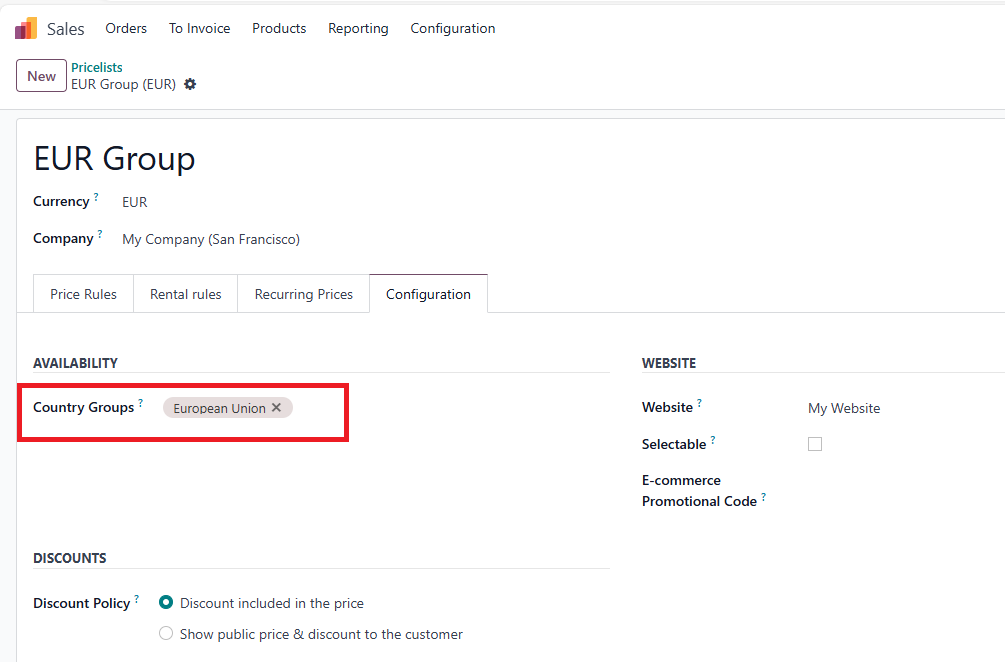
- This approach has several limitations, particularly in the following scenarios:
- You want to assign a pricelist to customers based on their state.
- Alternatively, if a customer has no overdue invoices, you want to automatically apply pricelist A. However, if a customer has an invoice overdue by more than 20 days, you want Odoo to automatically switch to pricelist B for that customer.
- Additionally, if a customer is new and has not yet placed any orders, you want to set pricelist B. However, if the customer's total order value exceeds $5,000, you want Odoo to automatically apply pricelist A. This approach is akin to having multiple pricelists for different customer tiers.
Solutions
In these scenarios, Odoo falls short of meeting the requirements. We offer a more intelligent solution that allows you to easily apply these scenarios to the customer pricelist.
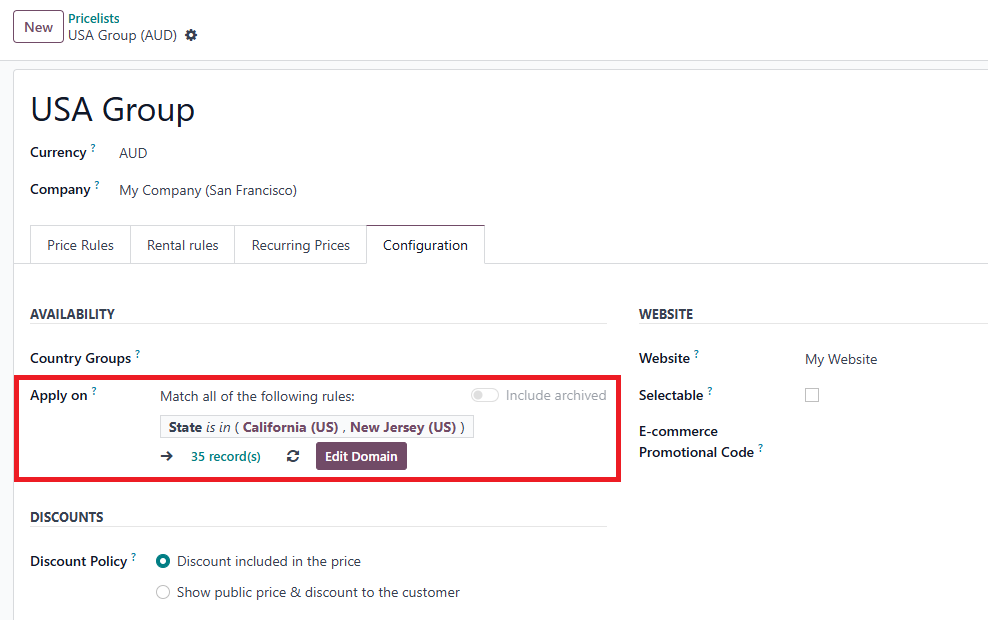
The pricelist is automatically applied to the customer once the criteria are saved.
- For example, you set the criterion as follows:
- This pricelist will be applied to customers who meet the criteria once it is saved.
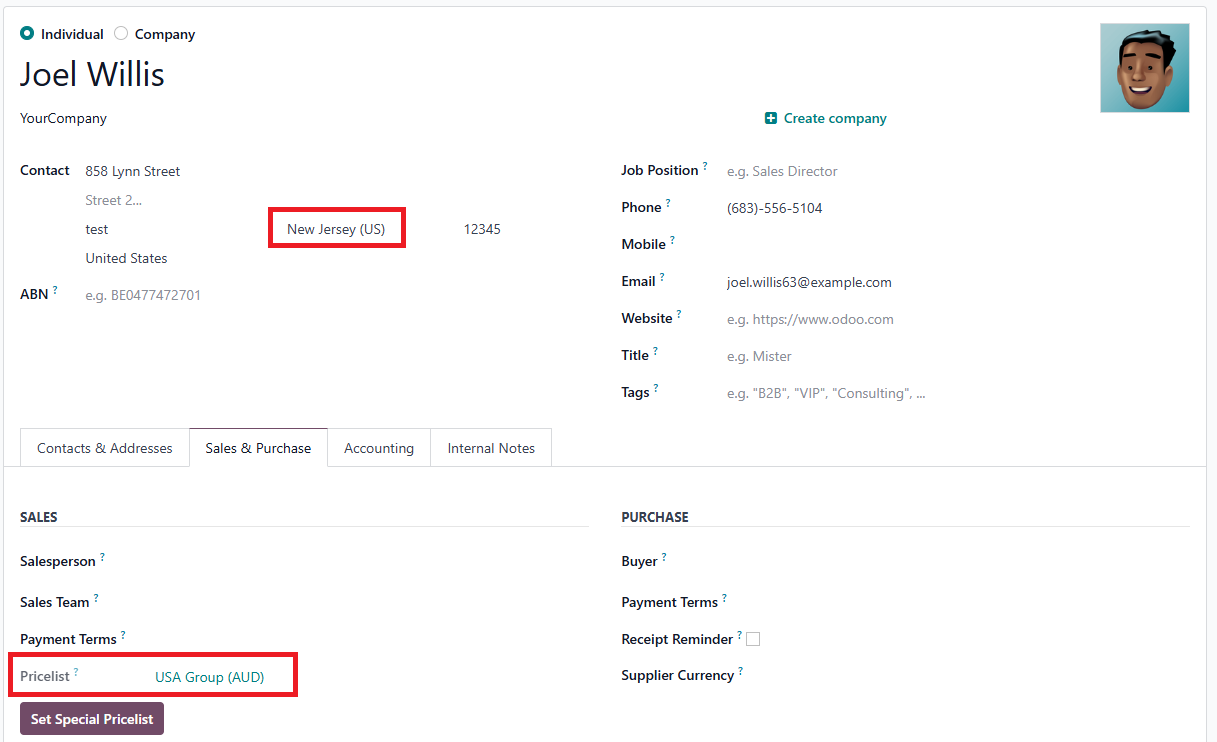
You can manually assign a pricelist to customers who meet the criteria.
- Sometimes, customers may meet the criteria specified in the pricelist, but you can still assign a different pricelist to these customers.
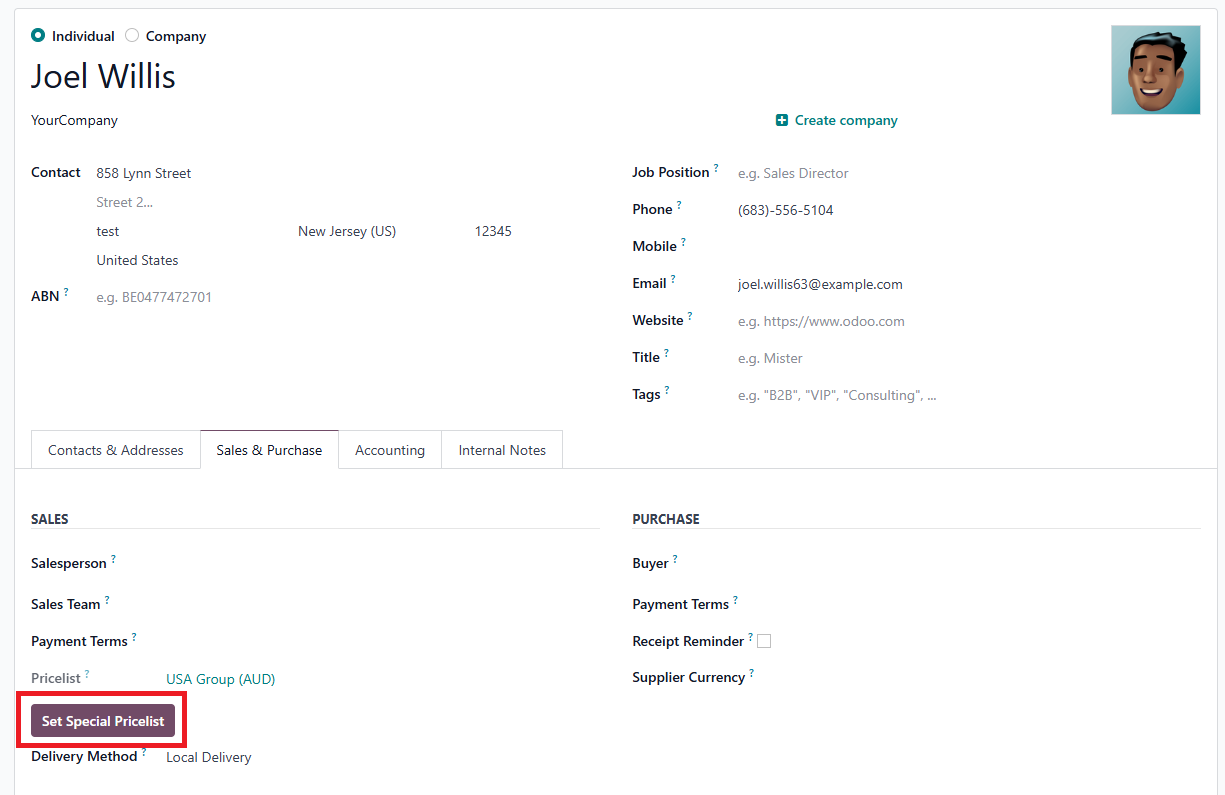
- Click on 'Set Special Pricelist' button.
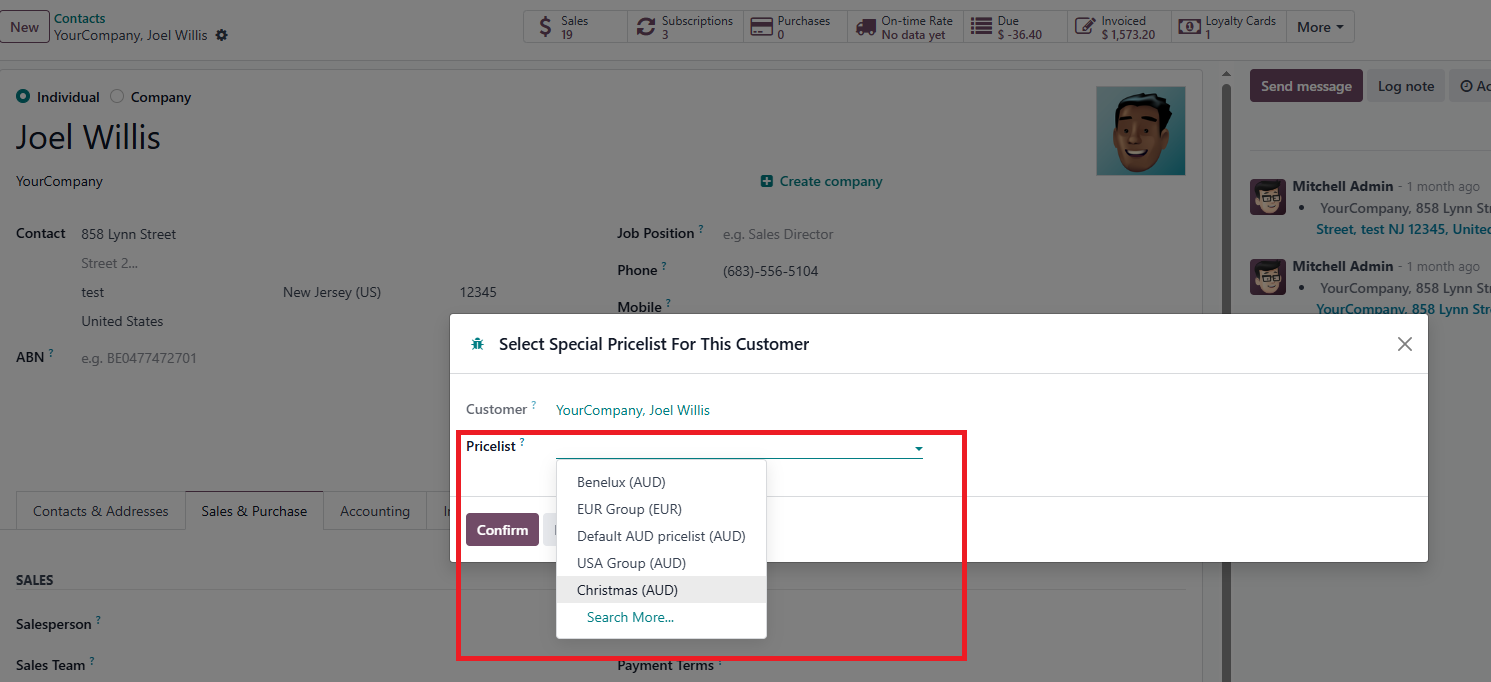
- Select new pricelist for this customer. New pricelist will be applied to this customer after click on 'Confirm' button
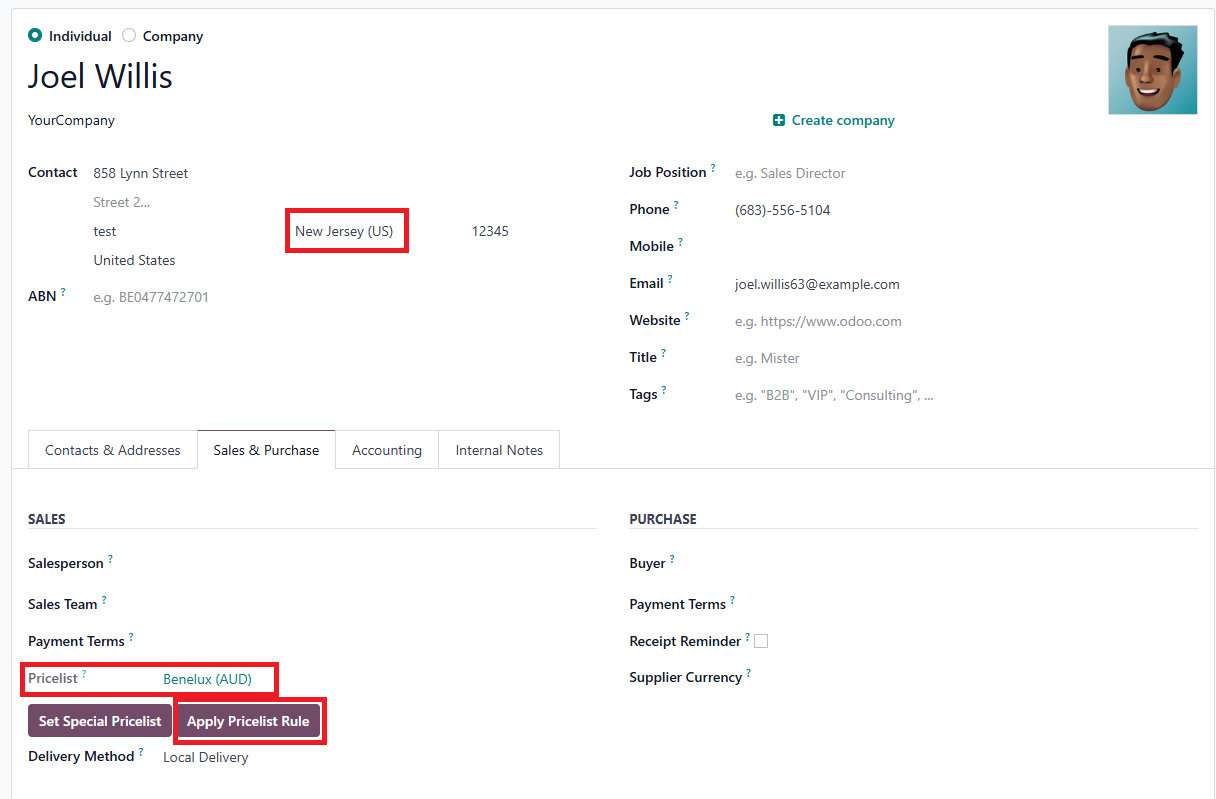
- By clicking the 'Apply Pricelist Rule' button, the customer pricelist will be applied according to the specified criteria.