Article overview
This article will provide a solution to help you manage products that will be sent to vendors for repair.
Detailed content
Limitation of Odoo
- In Odoo, if you want to send a product to a vendor for repair. Odoo currently does not offer an app specifically designed to help manage products sent to vendors for repair.
- You would like to manage the entire process, from sending RFQs and delivering products for repair to receiving the repaired items from vendors and creating bills..
Solutions
- With our solution, you can efficiently manage vendor repairs following this workflow:
- Create RFQ --> Send RFQ --> Confirm Repair Order --> Deliver Product for Repair --> Receive Product from Vendor --> Create Bill
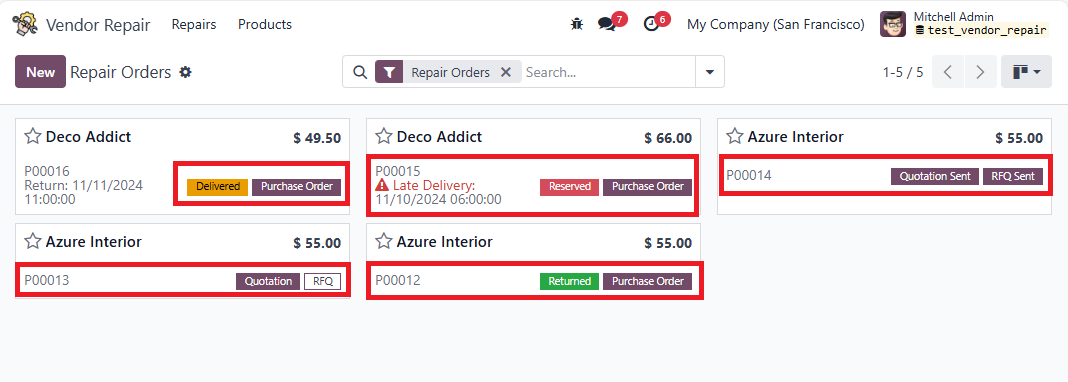
Creating RFQ, Sending RFQ and Confirming Repair Order
- You can send RFQ to vendor before confirming repair order.
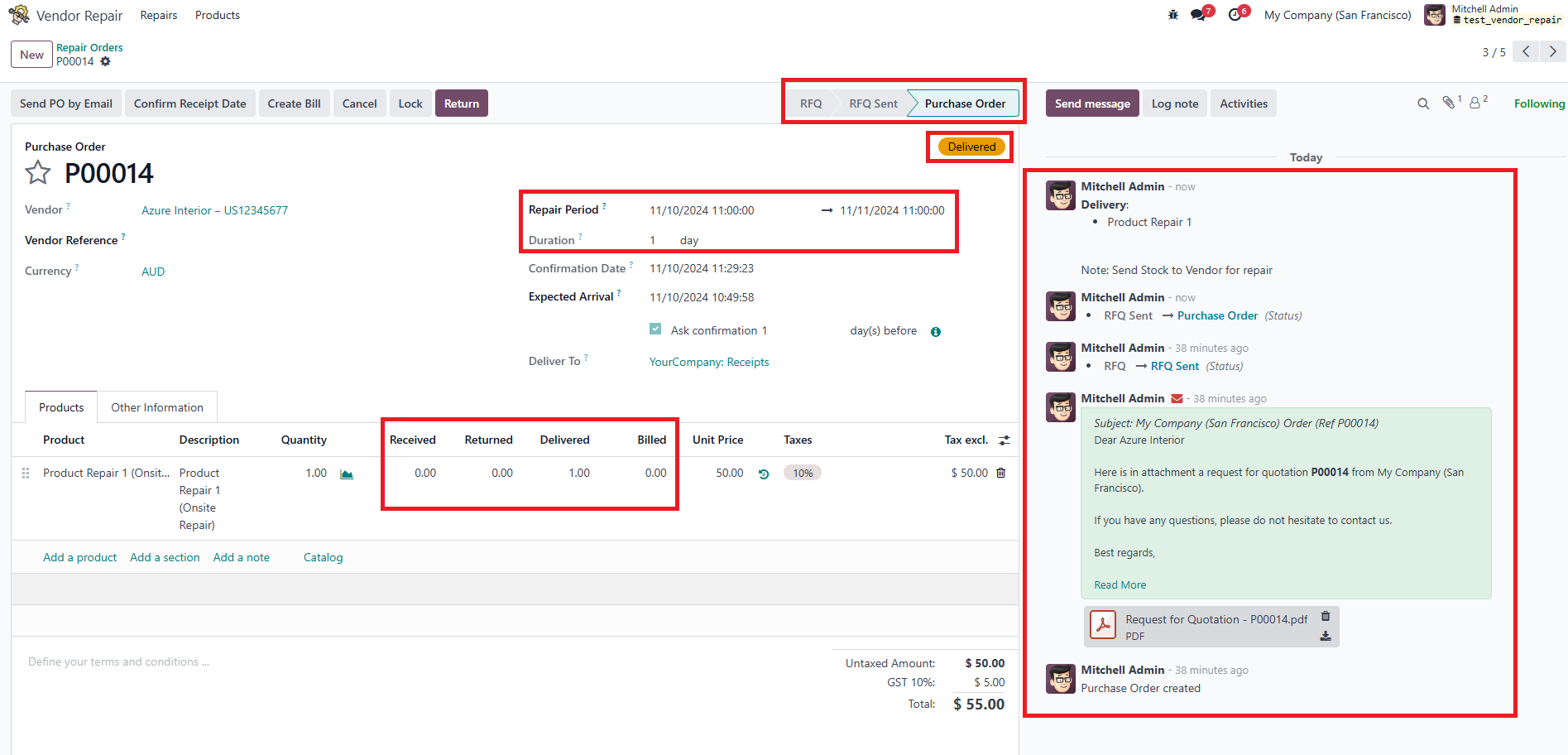
Deliver stock for repair and receive stock after repair
- After the repair order is confirmed, you can deliver stock for repair by clicking the "Delivery" button.
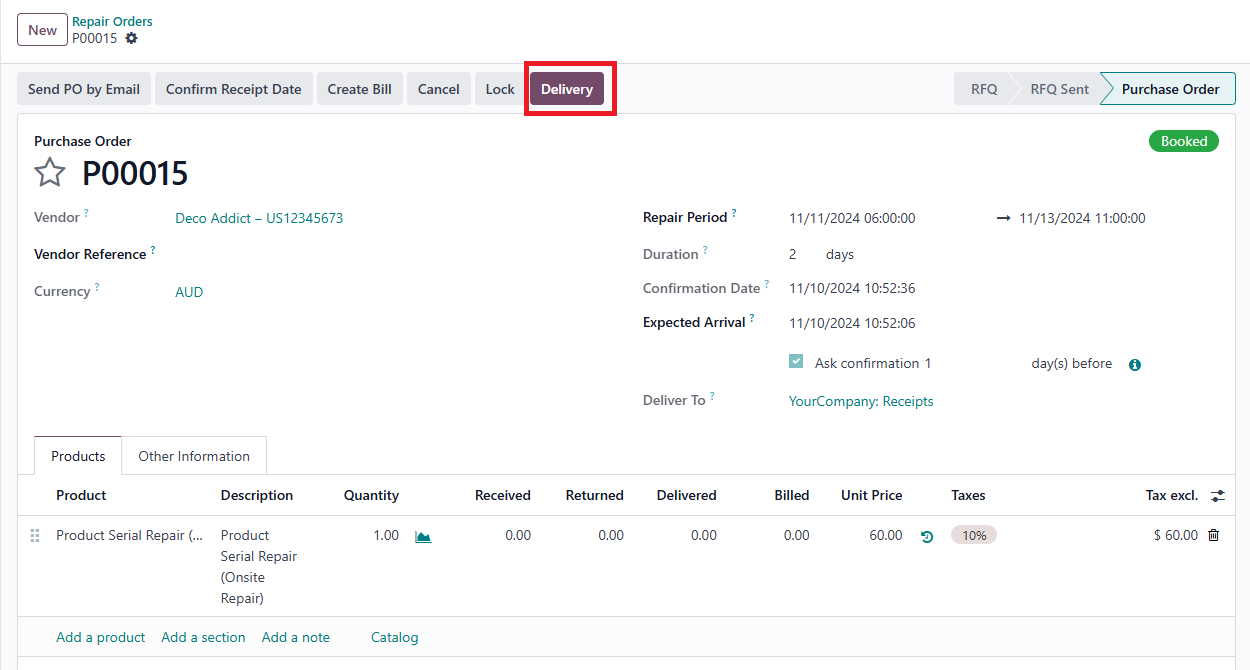
- You can select Serial number or lot, If product's tracking is serial or lot.
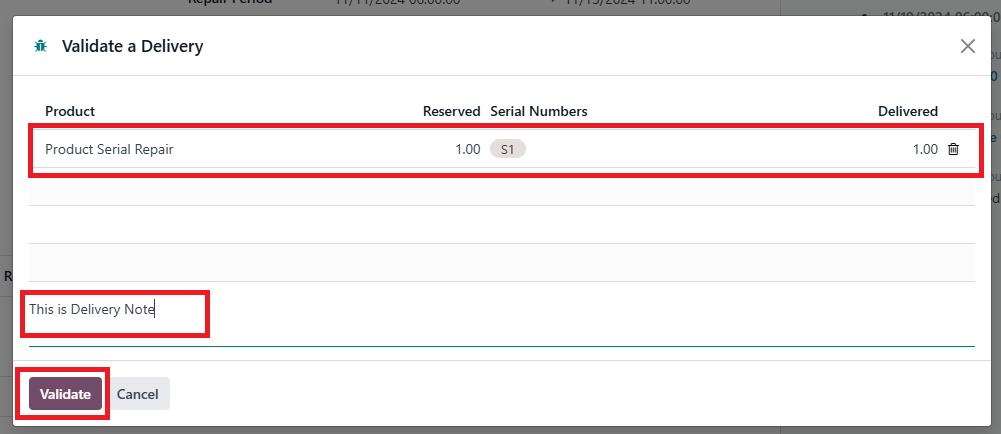
- The delivery information will be noted in the chatter section.
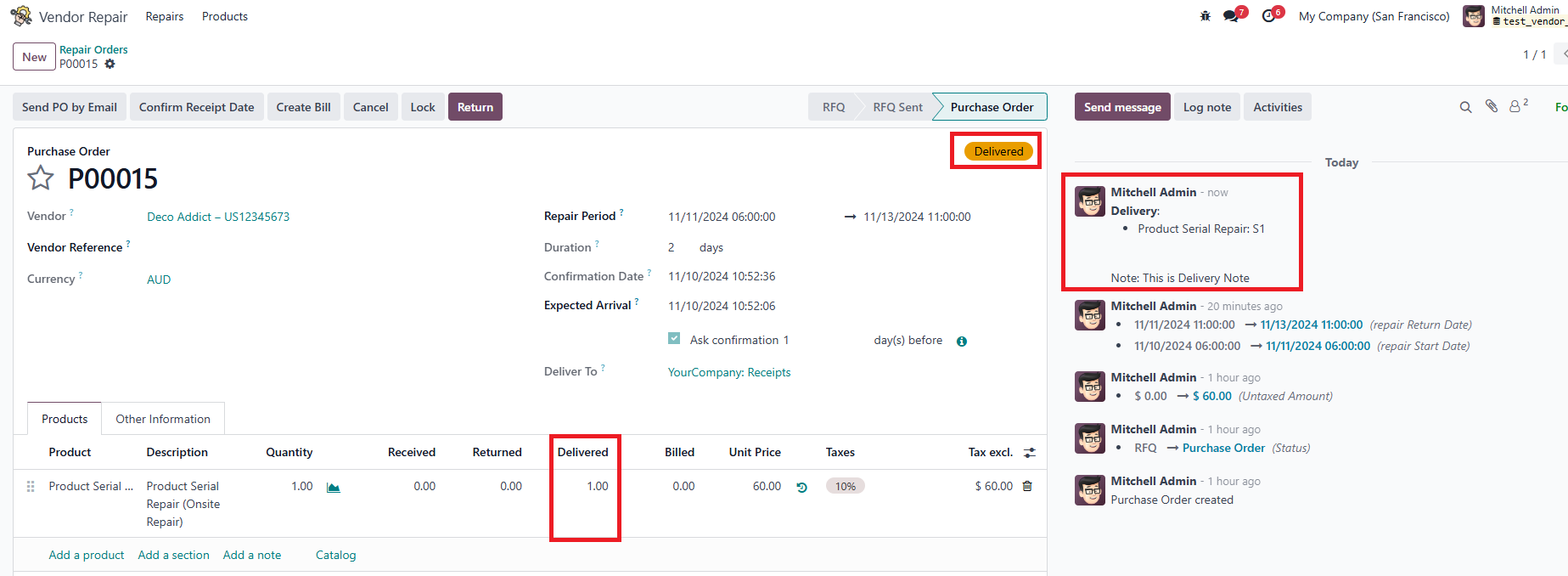
- A stock move will be created for transfering from Stock location to Vendor location.

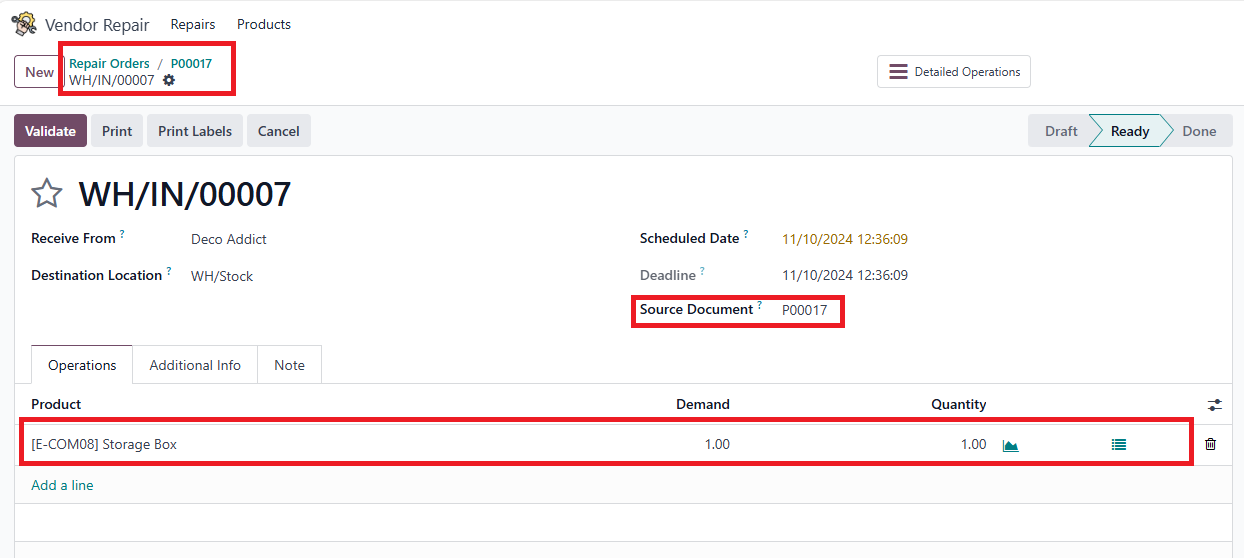
- Once the vendor has completed the repair, you can receive the product by clicking the "Return" button.
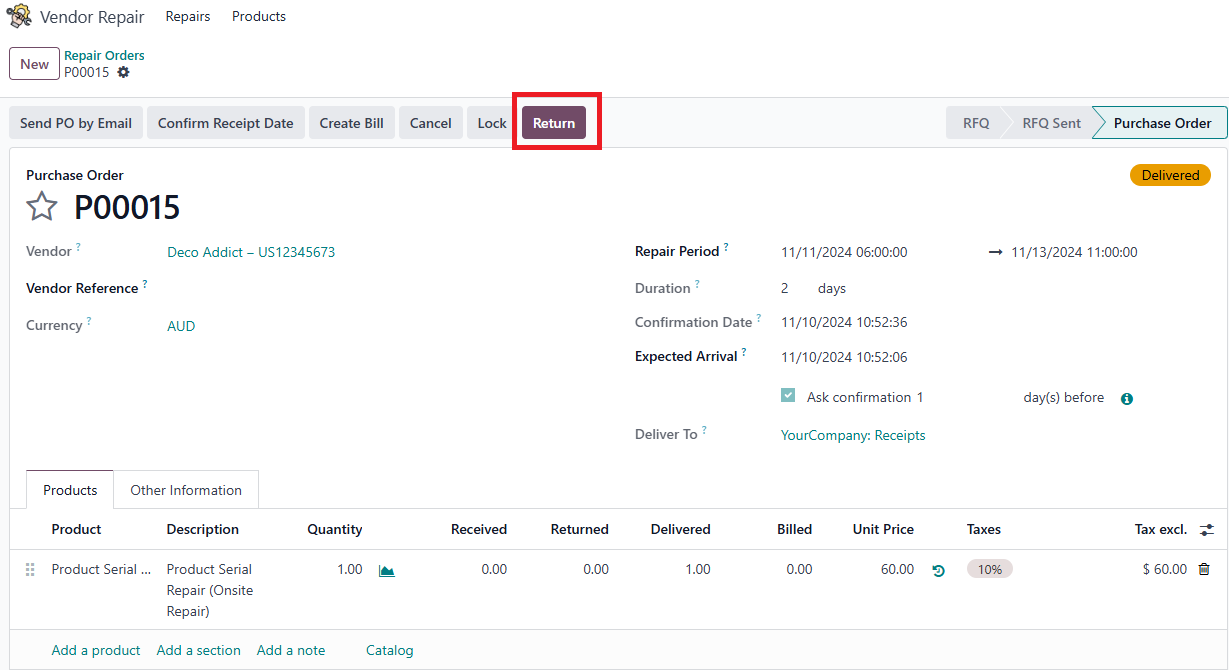
- Odoo will automatically fill in the product information, including the serial number of the product you delivered to the vendor for repair. You just need to review it and click the "Validate" button to validate the product receipt from the vendor.
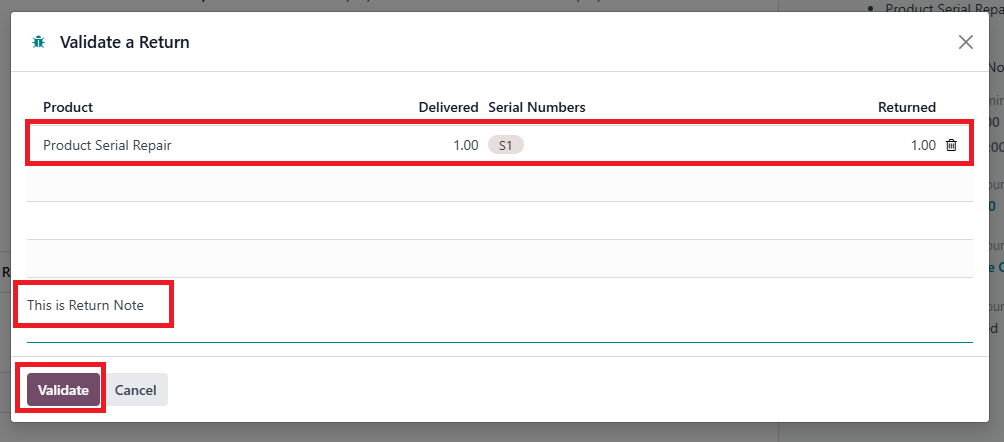
- The receive information will be noted in the chatter section.
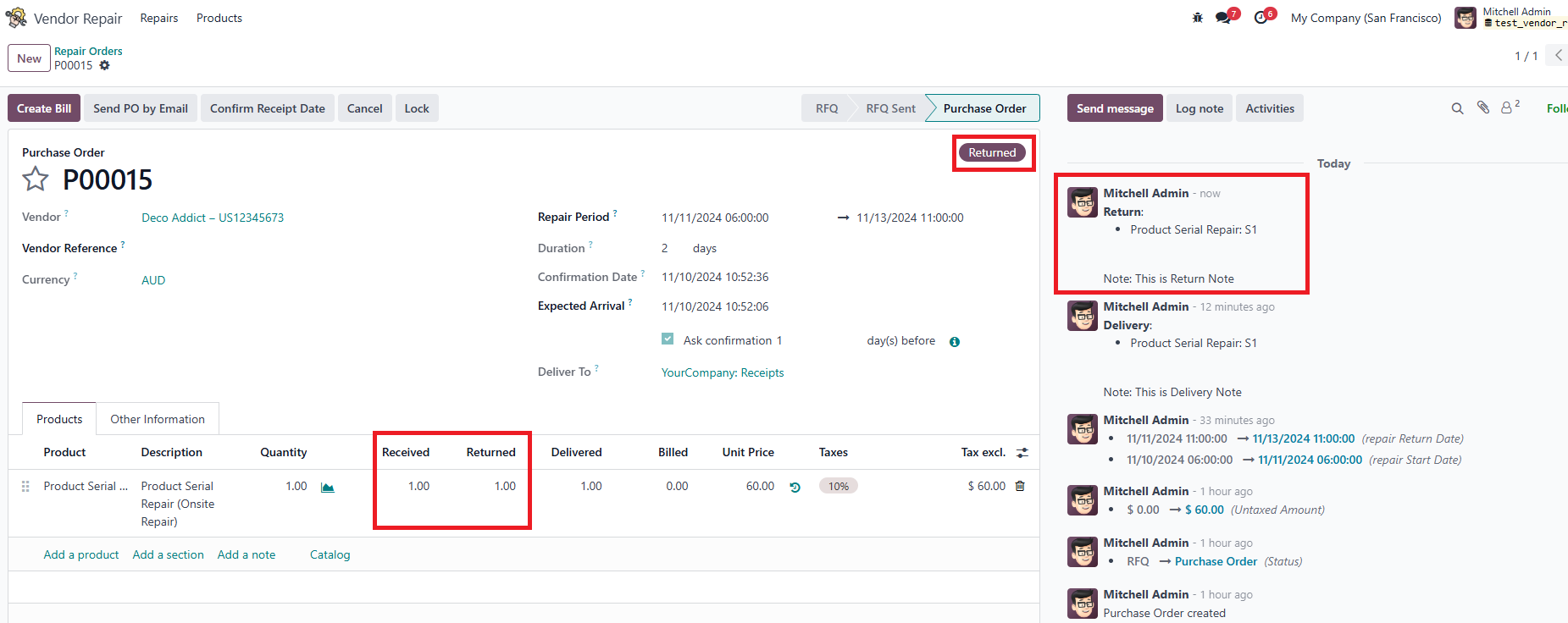
- A stock move will be created for transfering from Vendor location to Stock location.

Combine Purchase Order and Repair Order
- You can combine the Purchase Order and Repair Order. For example, you have an order like this:
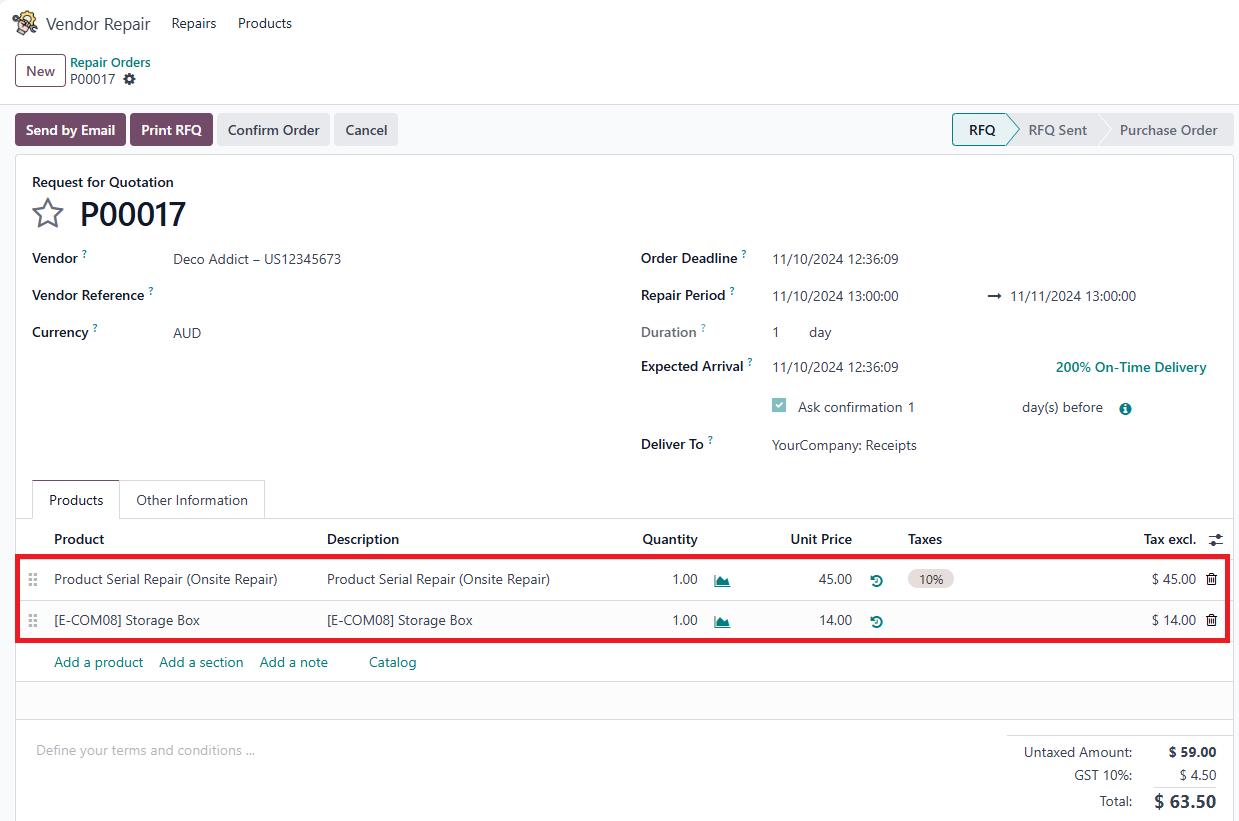
- The first line is for sending this product to the vendor for repair, and the second line is for purchasing this product. Here is the order after it has been confirmed.
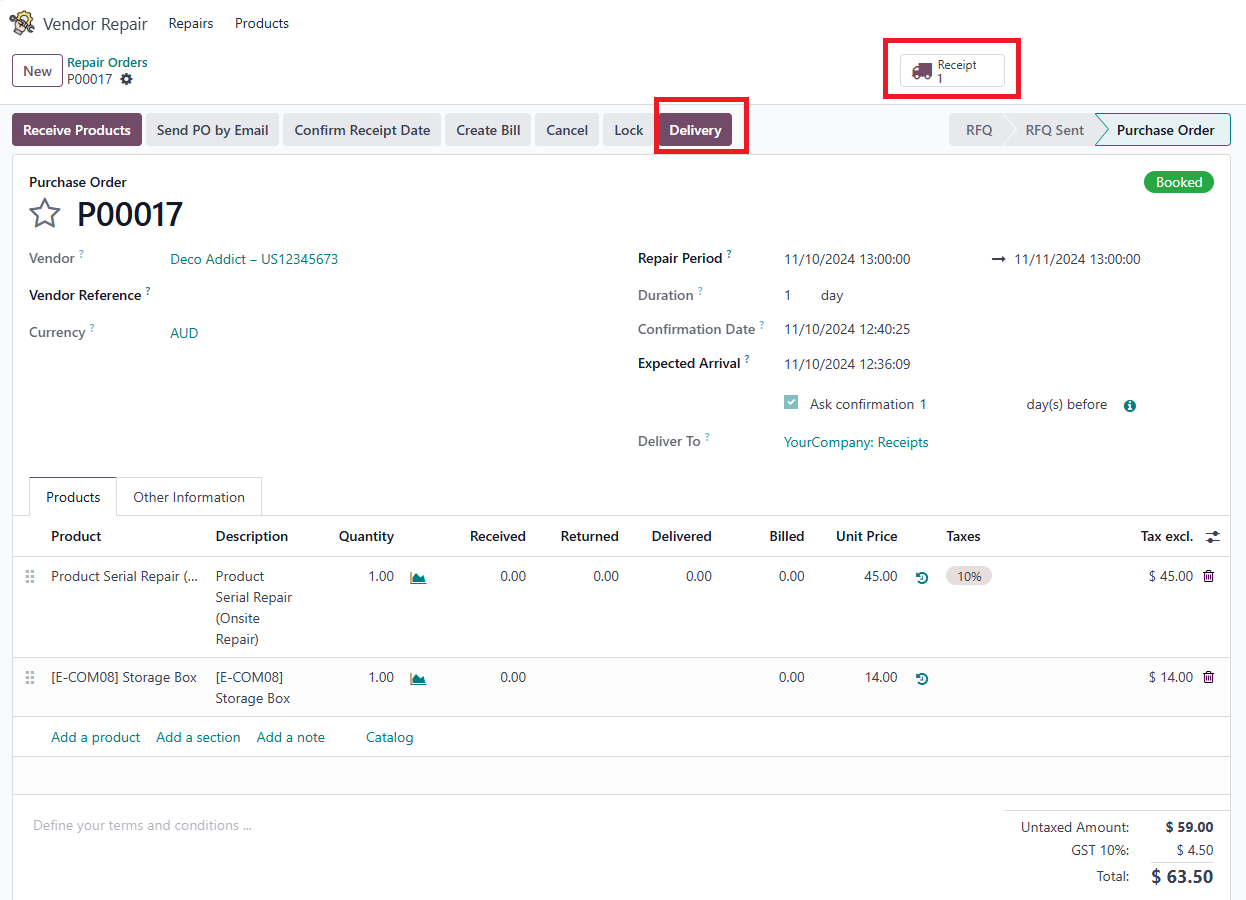
- You will see the stock picking for the product you want to purchase from the vendor, and you can validate this stock picking to receive the product, following the basic workflow of Odoo.